Meta released an official Google Tag Manager (GTM) template for the Meta Pixel in April 2026, replacing custom HTML implementations and third-party community templates.
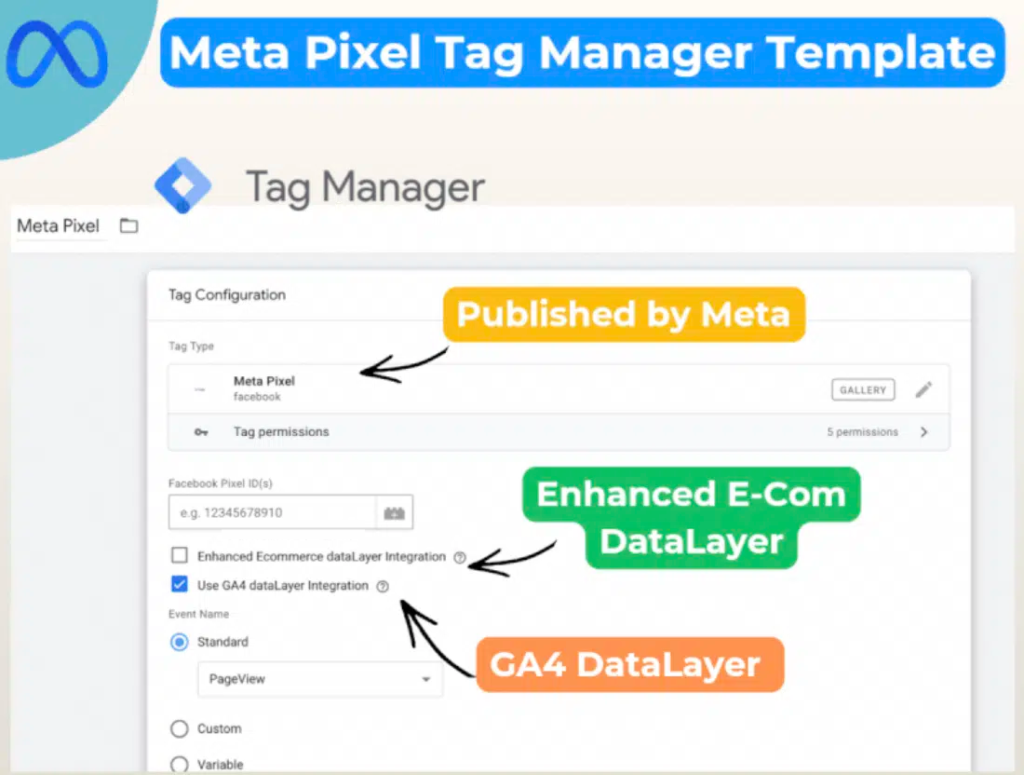
The template reads your existing GA4 dataLayer, automatically maps standard e-commerce events, and is published and maintained directly by Meta inside the GTM Community Gallery.
For advertisers running campaigns across Google and Meta, this is one of the most practical tracking updates of the year. Setup time drops from hours to minutes, signal quality improves, and tagging stays cleaner over time.

What Is the Meta Pixel GTM Template?
The Meta Pixel GTM template is an official, first-party tag template published by Meta inside Google Tag Manager.
It installs and configures the Meta Pixel using your existing GA4 enhanced e-commerce dataLayer, removing the need for custom HTML, manual event coding, or third-party community templates.
What Changed in April 2026?
Meta released an official GTM template that replaces three legacy methods of implementing the Meta Pixel: custom HTML tags, community-built templates, and Pixel-only server-side setups.
Until April 2026, advertisers had no first-party option in GTM and had to choose between three imperfect approaches.
| Implementation Method | Before April 2026 | Now |
|---|---|---|
| Custom HTML tag | Common, prone to misconfiguration | Legacy, replace where possible |
| Community GTM template | Widely used, variable quality, maintainer-dependent | Superseded by the official template |
| Server-side via CAPI | Recommended for advanced setups | Still recommended, complements the template |
| Official Meta template | Did not exist | The new default for client-side Pixel |
The new template solves the two biggest problems of the old setup. Meta owns the source code, ship updates centrally, and aligns the template with their current Pixel feature set, as confirmed by Search Engine Land when the update was first reported.
How the Template Reuses Your GA4 Data Layer
The Meta Pixel GTM template reads directly from your existing GA4 dataLayer, eliminating the need to push events to a separate Pixel-specific layer.
This is the single biggest reduction in implementation effort compared to the old workflow.
If your site already pushes GA4 enhanced e-commerce events (which most sites running GA4 do via WooCommerce, Shopify, or a custom GTM build), the Meta template reads from the same data structure. You configure once and both Google and Meta receive consistent event data.
What you need in place before installing
- A working GA4 implementation pushing enhanced e-commerce events
- A confirmed dataLayer object on the relevant pages (verify with GTM debug mode)
- A valid Meta Pixel ID or Dataset ID from Events Manager
- Admin access to the Google Tag Manager container
If your GA4 setup does not push enhanced e-commerce events, fix that first. The template has nothing to read otherwise.
Which Events Does the Template Map Automatically?
The template maps six standard GA4 e-commerce events to their Meta Pixel equivalents out of the box, with no manual configuration required.
Product, category, value, and currency parameters pass through automatically when present in the GA4 event payload.
| GA4 Event | Meta Pixel Event | When It Fires |
|---|---|---|
| view_item | ViewContent | Product page viewed |
| add_to_cart | AddToCart | Item added to basket |
| add_to_wishlist | AddToWishlist | Item saved to wishlist |
| begin_checkout | InitiateCheckout | Checkout started |
| add_payment_info | AddPaymentInfo | Payment details entered |
| purchase | Purchase | Order completed |
For e-commerce sites where GA4 is configured with AUD as the default currency, no extra mapping is needed. Currency and value flow through to Meta automatically.
Custom events still need manual configuration
If your business fires bespoke events (a ‘Quote Requested’ event for a B2B form, for example), you will still configure those manually inside the Meta tag. The automatic mapping only covers the six standard events listed above.
How to Install the Meta GTM Template (Step by Step)
Installing the official template takes about 15 minutes on a standard site if your GA4 setup is already in place.
Before starting, confirm that your GA4 implementation pushes enhanced e-commerce events to the dataLayer, otherwise the template has nothing to read.
Prerequisites checklist
- GA4 enhanced e-commerce is configured and firing
- You have admin access to the GTM container
- You have your Meta Pixel ID or Dataset ID from Events Manager
- Any legacy Pixel installation (custom HTML, community template) is identified for retirement
Setup steps
- Open your GTM container and go to Templates in the left sidebar.
- Click Search Gallery and search for ‘Meta’. Select the official template (publisher: Meta Platforms).
- Add the template to your workspace and review the requested permissions.
- Create a new tag using the Meta Pixel template type.
- Enter your Meta Pixel or Dataset ID in the configuration field.
- Configure event mapping, or accept the default GA4 dataLayer mappings.
- Set the trigger, typically All Pages for the base Pixel and Custom Event triggers for individual events.
- Preview and test using GTM’s debug mode and the Meta Pixel Helper Chrome extension.
- Publish the container once events fire correctly in the Events Manager.
Migrating from a legacy Pixel setup
If you already had a custom HTML or community-template Pixel installation, pause those tags before publishing the new one. Running both in parallel is the most common cause of duplicated events. Verify deduplication carefully if you are also running Conversions API.

What the Template Doesn’t Do
The template is a clean client-side Pixel implementation, not a complete tracking stack. Three limitations are worth flagging before treating it as a full solution.
It does not replace Conversions API
Client-side Pixel tracking is increasingly insufficient on its own, particularly post-iOS 17 and as third-party cookies disappear under Australia’s evolving privacy framework.
The right setup for most advertisers is the official template plus Conversions API via either Meta’s server-side connector or a server-side GTM container.
It does not handle custom events
Bespoke events specific to your business still require manual configuration inside the Meta tag. The automatic mapping covers the six standard e-commerce events only.
It does not audit your existing setup
Migrating from a custom Pixel install requires care. Audit every event currently firing, map it to the new template, and verify deduplication settings before retiring the old tags.
Should You Migrate Your Meta Pixel Setup?
Yes, if your current Pixel implementation predates April 2026 or relies on a community template, plan to migrate within the next quarter.
The signal quality improvements compound over time, and the official template will continue to receive feature updates that legacy methods will not.
| Your Current Setup | Recommended Action | Priority |
|---|---|---|
| Custom HTML tag (DIY) | Migrate to official template | High |
| Community GTM template | Migrate to official template | High |
| Server-side CAPI only | Add the official template for client-side coverage | Medium |
| Official Meta template already in place | Audit event mapping, confirm CAPI is paired | Low |
| No Meta tracking yet | Install official template plus plan CAPI | High |
If you are running Meta campaigns and your tracking implementation predates April 2026, this is the moment to revisit it.
Better data feeds better optimisation, which feeds better creative learnings, which feeds better return on ad spend.
Need help auditing or migrating your Meta Pixel setup? Our paid media team can review your current tagging configuration and implement the new template alongside Conversions API.